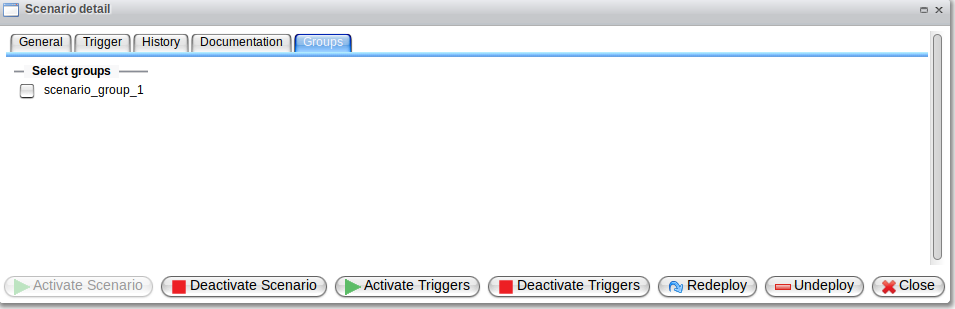
Scenario Details Dialog
The Scenario Details dialog provides an overview of a specific scenario. It is organized into several categories displayed as tabs.
The tabs and their descriptions are outlined in the table below:
| Tab | Description |
|---|---|
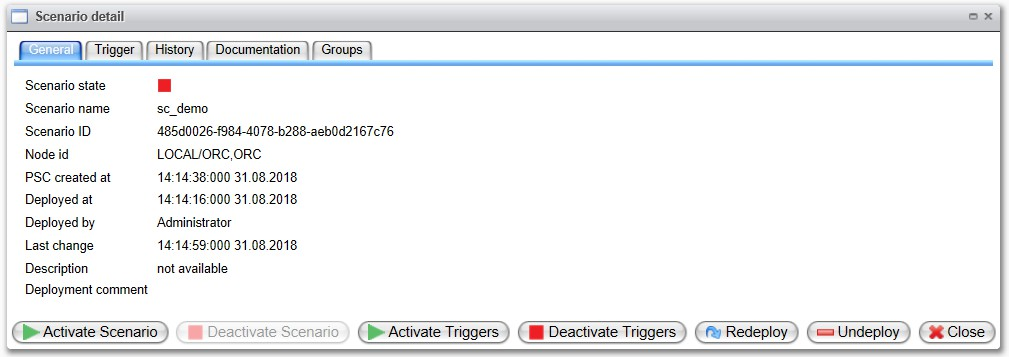
| General | Displays basic information about the scenario, including its name, ID, and deployment location. |
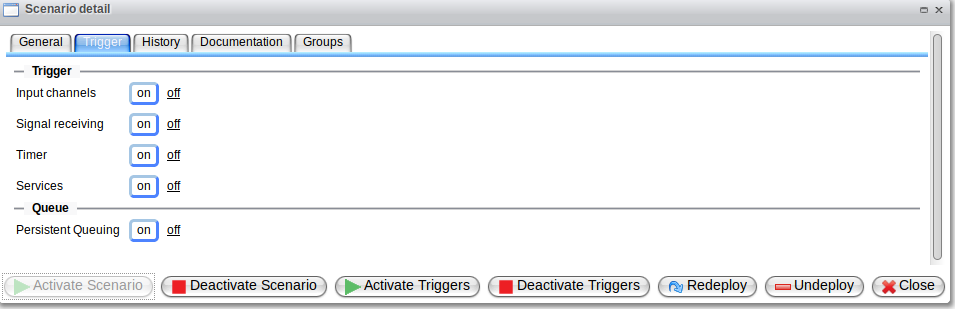
| Trigger | Offers options to activate or deactivate specific scenario start triggers. |
| History | Lists previously deployed versions of this scenario along with deployment comments. It also allows downloading and redeploying older versions. |
| Documentation | Presents the documentation relevant to this scenario. |
| Groups | Facilitates adding or removing the scenario from various groups. |
The buttons located at the bottom of the dialog are consistent across all tabs. Their functionalities are described in the following table:
| Button | Description |
|---|---|
| Activate Scenario | Activates this scenario (see Starting and Stopping a scenario). |
| Deactivate Scenario | Deactivates this scenario (see Starting and Stopping a scenario). |
| Activate Triggers | Activates all start triggers for this scenario (see Scenario Triggers). |
| Deactivate Triggers | Deactivates all start triggers for this scenario (see Scenario Triggers). |
| Redeploy | Redeploys this scenario (see Redeploy a scenario). |
| Undeploy | Undeploys this scenario (see Undeploy a scenario). |
| Close | Closes the Scenario Details dialog. |
General View
The General tab provides a summary of important information regarding the status and recent changes applied to the scenario.
Trigger View
The Trigger tab is designed to activate or deactivate specific scenario start triggers. The current state of the triggers is indicated by a blue box, as shown in the example screenshot below, where all triggers are currently activated:
Trigger
Clicking "off" will deactivate an active trigger, while clicking "on" will activate a previously deactivated trigger. Additional information on scenario triggers can be found in the Scenario Triggers chapter.
Queue
Deactivating persistent queuing is recommended only if a scenario should be completely ignored by the system, and undeployment is not desired. Reproducing the signals is not possible.
History View
The History tab displays a list of all previously deployed versions of the scenario, along with their corresponding deployment comments.
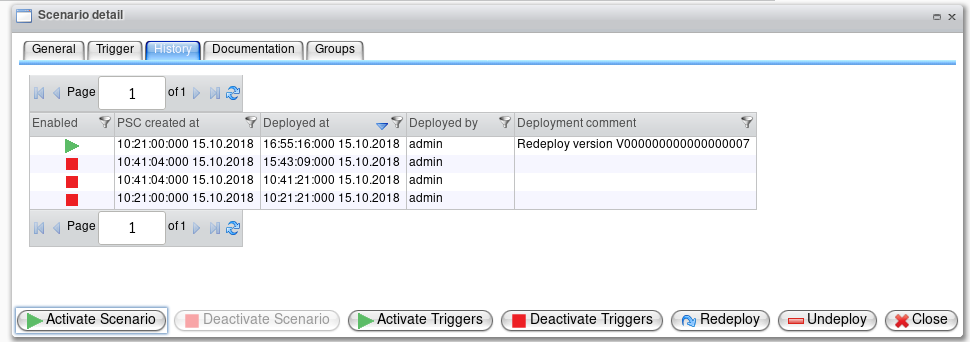
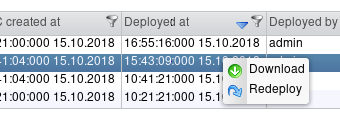
By opening the context menu for a specific scenario version (using the right mouse button), it is possible to download the .psc file or redeploy the selected version.
Documentation View
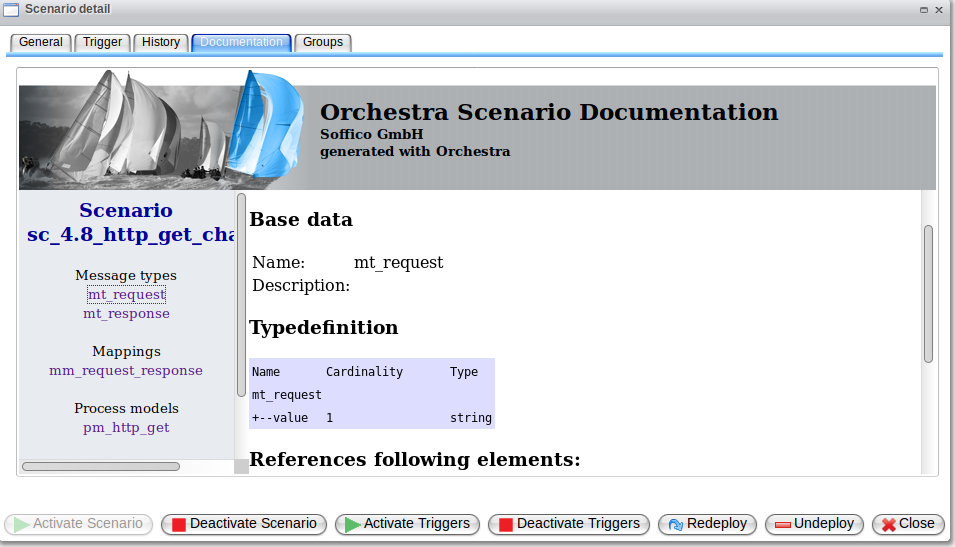
The Documentation tab provides an overview of scenario-specific details derived from process models, channels, and environment entries. For enhanced visibility, it is advisable to switch the dialog window to full screen.
Downloading the scenario's individual documentation is possible through the context menu of the scenario table.
Groups View
The Groups tab allows users to add the scenario to a group or remove it from a group. It is essential to create scenario groups before adding any scenarios. To add a scenario to an existing group, check the corresponding checkbox; to remove it, simply uncheck the box.
Further details on grouping scenarios can be found in the Scenario Grouping chapter.